
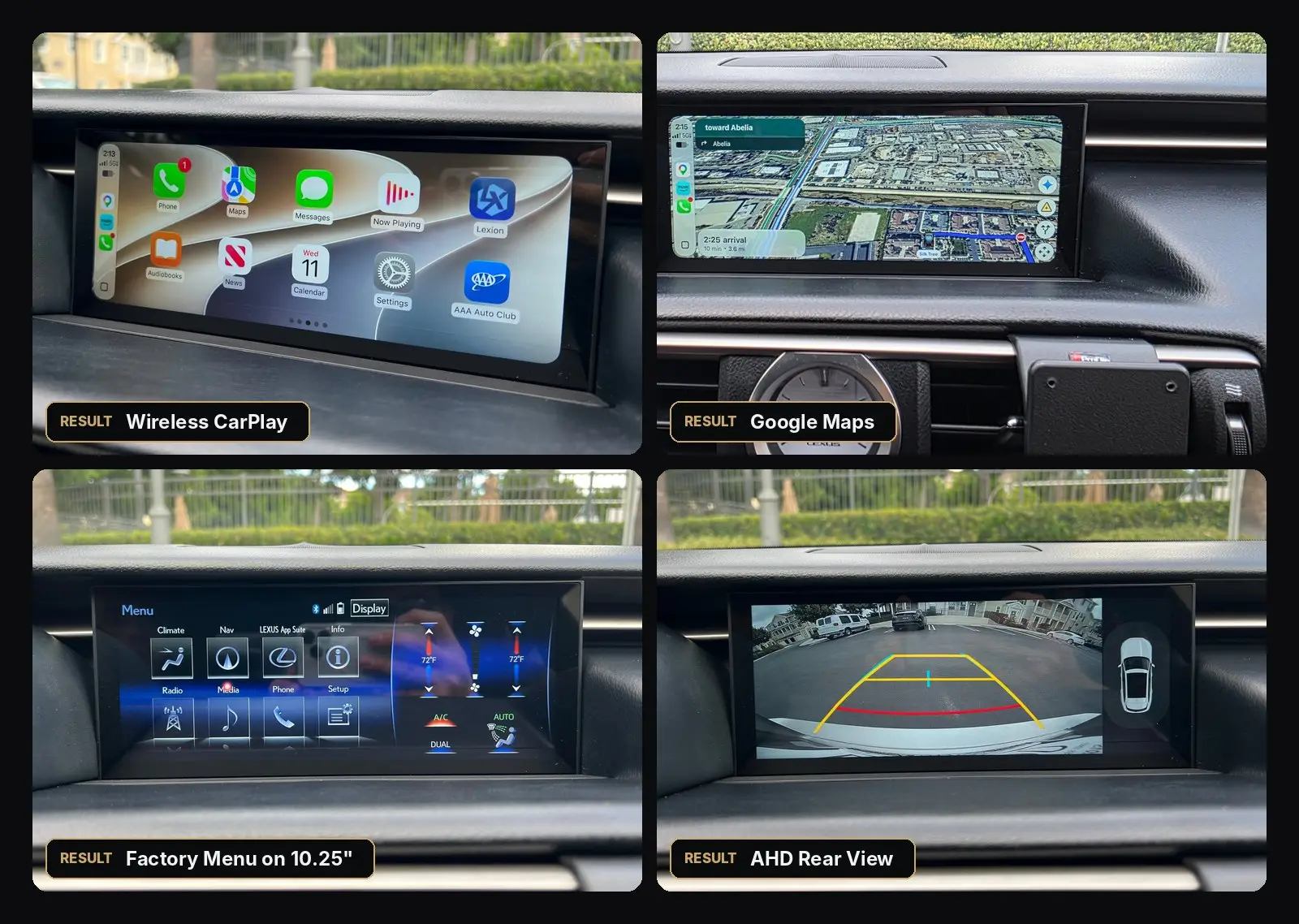
Most LX10S questions we receive on WhatsApp come down to the same handful of settings. This guide collects the fixes that solve them, based on real support conversations. Find your issue below, follow the steps, and if it still isn’t solved, message us — we reply personally.
Installation manual (PDF): wiring diagrams, bracket mounting and every setting for your model are in the official manual. Download the LX10S installation manual for your Lexus.
Before You Start: Initial Setup Video
If you’re setting up the LX10S for the first time, start with this video. It covers the factory menu resolution, the backup camera settings and the audio setup — the three things behind most support questions.
The Hidden Slide Menu (Vehicle Compatibility Settings)
The hidden slide menu tells the LX10S which screen size and controller your Lexus has. If these values don’t match your car, the factory Lexus menu can look cropped or stretched, show a green bar, go black, or the jog mouse / trackpad won’t move the cursor.
How to open it
- On the Lexion home screen, tap the Lexus icon to switch to the factory (original Lexus) screen.
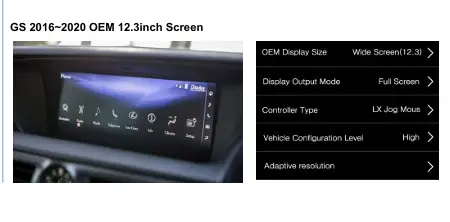
- Swipe your finger from the left edge of the screen toward the right. The slide menu opens on the left with: OEM Display Size, Display Output Mode, Controller Type, Vehicle Configuration Level and Adaptive resolution.
- Vehicle Configuration Level is locked: tap it quickly 6 times to change it between Standard and High.
- After changing anything here, turn the car off completely and restart it so the new settings take effect.
Controller Type and the other slide menu settings only take effect after you turn the car off completely and start it again. If you change the setting and test right away, it will look like nothing changed. Turn the car off, wait a few seconds, start it again, then test.
Lexus GS tip: the screen frame on the GS can make the swipe hard. Turn your hand so the back of your fingernail touches the screen and slide in from the frame edge. The same trick works on the RX, IS and RC.
Correct values for your Lexus
| Model | Factory screen | OEM Display Size | Display Output Mode | Controller Type | Vehicle Configuration Level |
|---|---|---|---|---|---|
| GS 2013–2015 | 8″ | Standard Screen 1 | Original Ratio | Jog Mouse | Standard |
| GS 2013–2015 | 12.3″ | Standard Screen 1 | Original Ratio | Jog Mouse (if it doesn’t work: GS Cursor) | Standard |
| GS 2016–2020 | 12.3″ | Wide Screen (12.3) | Full Screen | LX Jog Mouse | High |
| RX 2010–2015 | 8″ | Standard Screen 1 | Original Ratio | Trackpad | Standard |
| RX 2016–2019 (jog mouse) | 8″ | Standard Screen 1 | Original Ratio | GS Cursor | Standard |
| RX 2016–2019 (rotary knob) | 8″ | Standard Screen 1 | Original Ratio | Knob | Standard |
| RX 2016–2019 (jog mouse) | 12.3″ | Wide Screen (12.3) | Full Screen | LX Jog Mouse | High |
| RX 2016–2019 (jog mouse + factory 360° camera) | 12.3″ | Wide Screen (12.3) | Full Screen | Jog Mouse (360AVM) | High |
| NX 2014–2017 (jog mouse) | 7″ | Standard Screen 1 | Original Ratio | Jog Mouse | Standard |
| NX 2014–2017 (rotary knob) | 7″ | Standard Screen 1 | Original Ratio | Knob | Standard |
| NX 2018–2022 (trackpad) | 10.25″ | Wide Screen (12.3) | Full Screen | LX Jog Mouse | High |
| IS 2014–2017 (jog mouse) | 7″ | Standard Screen 1 | Original Ratio | Jog Mouse | Standard |
| IS (rotary knob) | 7″ | Standard Screen 1 | Original Ratio | Knob | Standard |
| IS 2018–2020 | 10.25″ | Wide Screen (12.3) | Full Screen | LX Jog Mouse | High |
| RC 2014–2017 | 7″ | Standard Screen 1 | Original Ratio | Jog Mouse | Standard |
| RC 2018–2022 | 10.25″ | Wide Screen (12.3) | Full Screen | LX Jog Mouse | High |
| ES 6th gen (jog mouse) | 7″ | Standard Screen 1 | Original Ratio | Jog Mouse | Standard |
| ES 6th gen (rotary knob) | 7″ | Standard Screen 1 | Original Ratio | Knob | Standard |
During Installation
A warning or error message appears while testing the unit
This is normal if you test before everything is reconnected. Plug the A/C panel and trim connectors back in and reinstall the panels — the message disappears once the car’s modules are connected again.
The harness plugs don’t match my car
For some models (for example RX, ES and CT 200h) the LX10S comes in different radio types: A, B or C. A plug that doesn’t fit usually means a different radio type was ordered. Send us a photo of your factory radio and factory screen menu on WhatsApp and we’ll confirm the right type.
A trim panel doesn’t clip in properly (right-hand-drive cars)
Contact us on WhatsApp with a photo of the panel. We’re producing updated RHD panels and will help you with a replacement.
The airbag warning light stays on after installation
The passenger airbag indicator is attached to the factory screen. Remove the indicator from the factory screen, plug it back into its original connector, and secure it behind the dashboard. The warning light goes off once the indicator is connected again.
The Lexion screen doesn’t turn on
The screen gets its power through the factory radio. Check that all connectors behind the radio and screen are fully seated, check the radio fuse in the driver-side fuse box, and make sure the factory radio itself works.
Buttons & Controls
Power, volume, Radio, Media or CH/Track buttons don’t work
The small adapter behind the screen was most likely not connected. It must be plugged in even when an AHD rear camera is installed — without it the panel buttons won’t respond. Ask your installer to check it behind the screen.
The jog mouse, trackpad or rotary knob doesn’t work on the factory Lexus screen
Typical signs: the cursor moves fine on the Lexion screen but not on the factory Lexus menu, the cursor is invisible, or clicking a menu does nothing. This happens a lot on the GS 2016+, RX 2016+ and NX / IS / RC 2018+.
Think of Controller Type as choosing your car’s CANBUS system. If the wrong one is selected, the controller won’t work in the factory menu.
- Open the hidden slide menu and set Controller Type and Vehicle Configuration Level to the values for your car in the table above.
- Turn the car off completely and start it again. The new setting is not applied until you do this — this is the step most people miss.
- Still not responding? Unplug the main power connector on the back of the screen and plug it back in, so the new CANBUS setting is applied.
- Still not working? Check that the controller connector behind the screen is firmly seated, then send us your software version (Lexion Settings › General) and a short video.
I changed the controller setting and restarted, but it still doesn’t work
- Turn the car off, unplug the main power connector behind the screen for 30 seconds to 1 minute, then plug it back in and start the car.
- Try the toggle method: select a different Controller Type, turn the car off for 30 seconds, then select the correct one again and restart.
- GS models set to GS Cursor: a full reset works best. Disconnect the negative (–) battery terminal for about 5 minutes, then reconnect.
- Still not working? Send us your software version (Lexion Settings › General › Version info) and a short video on WhatsApp.
RX (2009–2015) or CT: the jog mouse only works in the factory menu
Some RX and CT cars have the B-type radio. On this radio the jog mouse works in the factory Lexus menu, and the Lexion / CarPlay side is used with the touchscreen. A slight lag in the factory menu is normal. This is the same for every aftermarket screen on this radio type.
The screen is black or stuck
Press the MENU button next to the jog mouse, or press and hold MENU to switch between the factory Lexus menu and the Lexion screen. The hidden slide menu can be opened even when the screen is black, so you can correct the settings from there.
Some steering wheel buttons don’t do anything
Volume, track, call and voice-assistant buttons are supported. The cruise control (ACC) buttons are not part of the screen’s controls. If a media button misbehaves, send us a photo of the whole steering wheel and tell us which button you pressed.
How do I re-learn the steering wheel buttons?
Go to Settings › Car Setting › Wheel key learning. Tap Reset, tap the function on the screen, then press the steering wheel button you want to assign. Volume, track, call and voice (long-press skip = Siri / Google Assistant) work with wireless CarPlay and Android Auto.
Factory Lexus Menu & Display
The language changed, the backup camera stopped working, or the climate display won’t go away
This means the unit’s settings were reset. Set the hidden slide menu values for your car again (table above) and re-check the camera settings in Settings › Car Setting › Backup Camera. Everything comes back once the settings match your car.
Climate controls don’t appear on the screen
Check that the hidden slide menu values match your car. If they’re correct, send us a photo of the slide menu and your software version (Lexion Settings › General) on WhatsApp.
The A/C or another factory function acts strangely after installation
The LX10S does not control the A/C, but the car’s CAN bus can need a reset after the radio area was unplugged. Disconnect the negative (–) battery terminal for about 20 minutes, reconnect it and test again.
The factory radio keeps rebooting, the factory screen is often black, or there is no sound even on FM radio
These are signs of a failing Lexus factory radio (mainboard), a common, well-known problem on these Lexus models. It is not caused by the LX10S: the audio and factory menu come from the original radio. To confirm, reinstall the factory screen and wiring and check whether the problem continues. The fix is to repair the radio (mainboard replacement) or buy the same radio used. Lexion is preparing to offer a replacement mainboard, so message us on WhatsApp to check availability.
Sound, Calls & Connection
No sound from CarPlay / Android Auto, or calls don’t work
LX10S audio plays through your car’s factory Lexus Bluetooth. The LX10S uses its own Bluetooth (BT-xxxx) only to start wireless CarPlay — the sound goes through the Lexus Bluetooth.
- Pair your phone with your Lexus factory Bluetooth and select Bluetooth as the audio source in the Lexus media menu.
- In the Lexion audio settings, make sure the Bluetooth audio output option is ON. If it is off, no sound comes through the car’s Bluetooth.
- Using screen mirroring instead of CarPlay? Turn that option OFF and select AUX as the audio source in the factory Lexus media menu.
Follow this audio Bluetooth setup video step by step:
Wireless Android Auto keeps disconnecting
Restart your phone and the car, and make sure your unit has the latest firmware. If it continues, send us your software version (Lexion Settings › General) and how often it disconnects.
My phone connects to the Lexion Bluetooth (BT-xxxx) and then it disconnects
That is normal. The Lexion Bluetooth (named BT- followed by 4 characters) is only used to start wireless CarPlay / Android Auto, and it disconnects by itself once the wireless connection is up. Music and calls go from your phone directly to the Lexus factory Bluetooth, so keep your phone paired with the Lexus Bluetooth. If audio is unstable, delete the Lexus Bluetooth pairing on both the phone and the car and pair it again, following this video.
Callers can’t hear me, or “Hey Google” doesn’t work
The LX10S uses your factory Lexus microphone. Make sure the mic jack in the middle of the main harness is connected. For Android Auto voice commands, also connect the small black AUX/mic plug from the harness, update the Android Auto and Google apps, and allow microphone access for Android Auto and Google Assistant in your phone settings. Still not working? Send us a short video on WhatsApp.
Two phones in the car: the wrong phone connects
CarPlay can’t set a connection priority. When two paired phones are in the car, turn off Bluetooth on the phone that should not connect, and the other phone will connect.
Call audio comes out of my iPhone instead of the car speakers
On your iPhone go to Settings › Accessibility › Touch › Call Audio Routing and select Automatic. Also check that the phone is paired with the Lexus factory Bluetooth.
Can I use wired CarPlay instead of wireless?
Yes, but wired CarPlay sends audio through the Lexus AUX input, so the steering wheel buttons are not supported. We recommend wireless CarPlay; for fast charging, use a 12V (cigarette lighter) USB charger.
Wireless CarPlay drops or music skips
Open the S-Link menu and change the Wi-Fi channel, then reconnect. (CarPlay, Android Auto and Mirroring are on the main menu; S-Link now only holds the Wi-Fi channel setting.) Also update your phone apps and test with another phone if possible.
Cameras
Backup camera settings at a glance
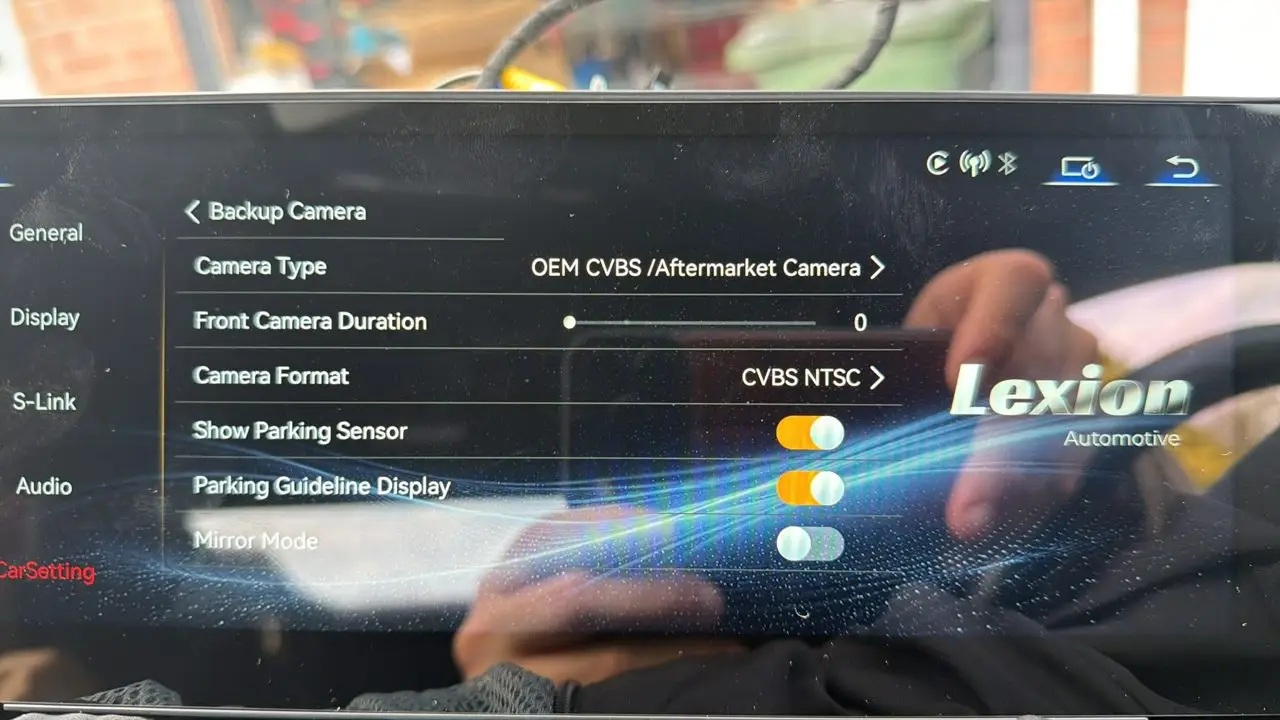
All camera options are in Settings › Car Setting › Backup Camera. Tap Camera Type or Camera Format to open the list and choose the option.
| Your camera | Camera Type | Camera Format |
|---|---|---|
| Lexion AHD camera | OEM CVBS / Aftermarket Camera | AHD 1080P@25 |
| Factory (OEM) camera — most Lexus | OEM CVBS / Aftermarket Camera | CVBS NTSC |
| Factory camera that uses an LVDS signal | OEM LVDS Camera | — |
| Factory 360° camera | OEM 360 AVM | — |
The backup camera doesn’t show when I shift into Reverse (black screen)
Go through these steps in order and check Reverse after each one:
- Lexion AHD camera? Set Camera Type to OEM CVBS / Aftermarket Camera and Camera Format to AHD 1080P@25.
- Factory camera? Set Camera Type to OEM CVBS / Aftermarket Camera and Camera Format to CVBS NTSC.
- Still no picture with the factory camera? Change Camera Type to OEM LVDS Camera. Some Lexus models — even of the same model and year — use an LVDS factory camera.
- The screen switches to the camera but stays black? Check that the camera RCA plug on the back of the screen is in Back Video In, not DVR Video In (same color). Also check the factory backup camera adapter: its red wire powers the factory camera and must be connected to Input A (Input B on 2019+ Lexus models). Without it, the factory camera picture won’t appear.
- Still not working? Send us your software version and a short video on WhatsApp.
The factory camera picture appears for a split second, then the screen goes black
This is the typical sign that your car’s factory camera uses an LVDS signal, not CVBS. Go to Settings › Car Setting › Backup Camera, set Camera Type to OEM LVDS Camera, and the camera will display normally.
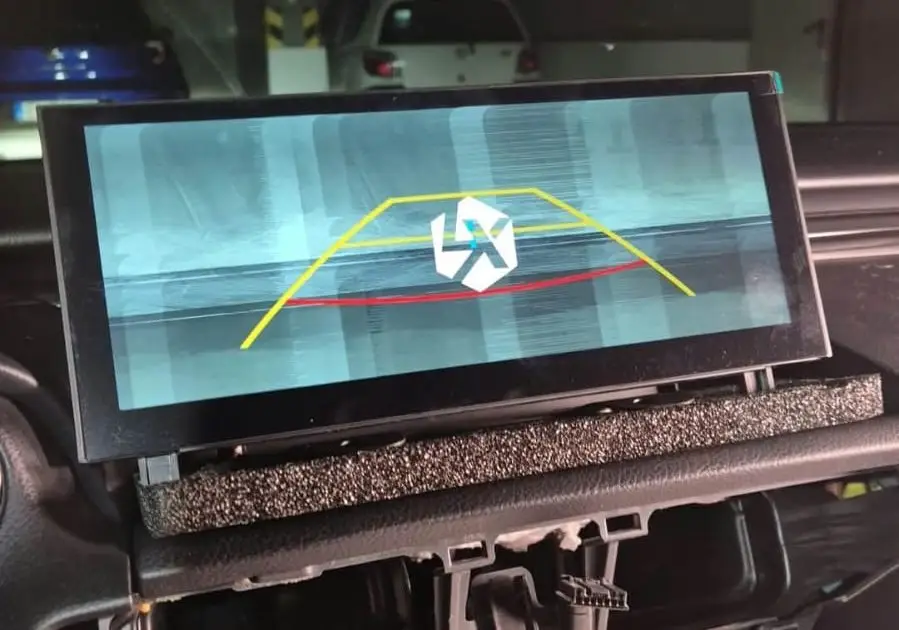
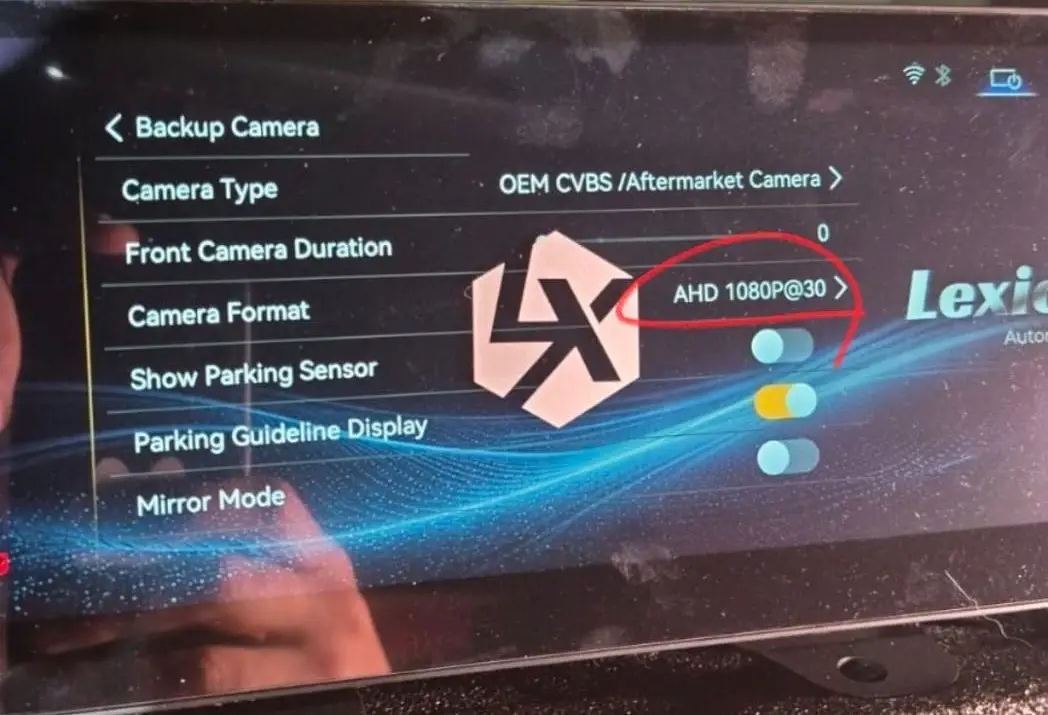
The factory camera picture is scrambled or full of lines (the parking guidelines still show)
Camera Format is set to an AHD format (for example AHD 1080P@30), but the factory camera uses CVBS. Go to Settings › Car Setting › Backup Camera › Camera Format and select CVBS NTSC.
The factory menu flashes for a moment when the factory rear camera turns on
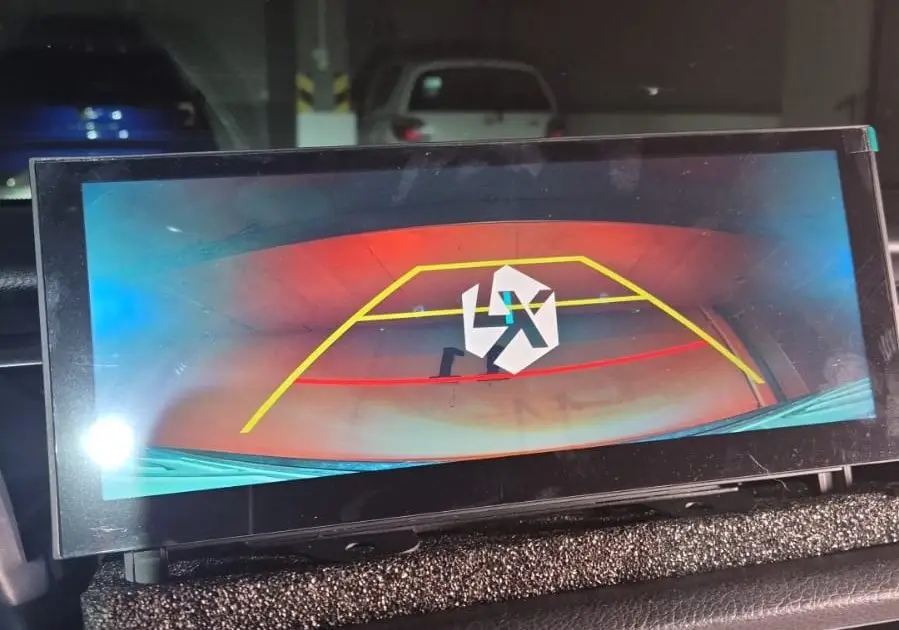
That’s normal on cars whose factory rear camera uses an LVDS signal: the system briefly switches to the original Lexus interface to show that camera. Upgrading to the Lexion AHD rear camera removes the switch and gives a much sharper picture.
“No signal” appears when the front parking sensors beep
The front-camera auto view is switched on, but no AHD front camera is installed. In the AHD camera settings, set the front sensor auto view to Close and Front Camera Duration to 0 seconds. With an AHD front camera installed, choose Far or Middle and your preferred duration. If an option asks for a password, it is 888888.
What do the other AHD camera options do?
- Show Parking Sensor: off = camera view in full screen; on = camera view together with the parking sensor display.
- Parking Guideline Display: shows dynamic parking guidelines on the rear view (not on the front camera).
- Front Camera Duration: how long the front view stays on after shifting from Reverse to Drive. Set it to 0 if you don’t have a front camera.
Can I add a front camera or 360° cameras later?
Yes for the front camera: the AHD front camera works together with the AHD rear camera, so both are replaced. If your car has factory 360° cameras, choose the OEM 360 AVM option and they keep working. Aftermarket 360° camera kits are not available for the Lexion screen.
The camera icon on the main menu doesn’t show my factory camera
That camera icon is for the Lexion AHD camera only. The factory rear camera appears automatically when you shift into Reverse.
The front camera doesn’t turn on automatically after Reverse
Automatic switching to the front camera when you shift from R to D needs both the front and rear Lexion AHD cameras. With the factory rear camera, the AHD front camera can only be opened manually. The front camera can also pop up from the front parking sensors when an obstacle gets close (not at the first warning stage).
The factory parking guidelines disappeared
This often happens on Lexus cars after the battery was disconnected. It is a Lexus calibration setting, so the dealer (or Toyota/Lexus Techstream) needs to turn the guidelines back on. The Lexion AHD rear camera has its own dynamic guidelines.
The camera image is flipped, or I want to hide the Lexion guidelines
In Settings › Car Setting › Backup Camera, use Mirror Mode to flip the image, and turn off Parking Guideline Display to hide the Lexion guidelines.
Software & Updates
How do I get software updates?
A new software update will be released in December 2026. We will email it to customers at the email address used for the order.
Can I change the boot logo or wallpaper?
A custom boot logo is possible: the file and instructions are in the Lexion Facebook group (Files). The wallpaper can’t be changed yet; a new design is coming with future updates.
Can the LX10S drain my car battery?
No. The screen only runs when the ignition is on and has no standby mode, so it draws no power when the car is off.
CarPlay shows the wrong speed, or maps are slow
CarPlay uses your iPhone’s GPS and apps, so this comes from the phone. Update iOS and your map apps, restart the phone, and test with another phone if possible.
What languages does it support?
The Lexion menu is in English. CarPlay and Android Auto use your phone’s language, including maps and voice.
Still Need Help?
Send us these three things on WhatsApp and we can usually solve it in one reply: your vehicle model and year, your software version (Lexion Settings › General), and a short video or photo of the issue.
Talk to us on WhatsApp
Real people, real installs. Send your model, software version and a short video.
Message Support →
1 thought on “Lexion LX10S Troubleshooting Guide: Quick Fixes for the Most Common Issues”